Sunday, May 15, 2016

Smarphone interviews with cheap mobile kit - my 1st test videos

I bought this dual lavalier microphone, a cheap bluetooth button and a cheap small tripod to be able to record either a person giving a talk or an interview between two people with my cel phone as the video source.

I'm using the OpenCamera app; the default LG wouldn't work well with the bluetooth button. This app works very well and has plenty of options.

In the share below I've put a pic of the materials, my first test video (yes, I need to put the phone off vibration when doing recordings) and also a test when trying to use only the additional microphone (it records really, really low); finally a test while connecting the 2nd mic on the fly and seeing if there's a big difference between them.

I also tried it interviewing my wife and I think it works very well. The camera is on auto, but it has a lot of settings I can play with if the lighting is not perfect (this is an LG v10). If I am to appear in the interview, I need to figure out a way to tell if the video is properly framed.... since i would be on the other side.

The long microphone is about 4 arm lengths - listed as 2.5 meters. I'm still deciding if I should get a longer one - since the tripod is so small, I may not always have a table at the right height (close enough to the best light for the recording).

I get around 100MB for one minute at 1080 resolution. The video uploads to YouTube directly without issues, and I do get 1080p as a quality option :D

Original files:


Test video one in youtube (I actually edited the end :D ):


Please let me know any tips or other hardware that you think will help; hopefully soon I can start testing this out in the VMUGs, design sessions, etc.


From the Youtube video description:


This video is done with a LG v10 in auto settings (except 1080 and record from external microphone) with the excellent OpenCamera app

https://play.google.com/store/apps/details?id=net.sourceforge.opencamera&hl=en

Items shown here 

https://drive.google.com/file/d/0B0f3j2qpiltMakUzTERreXR3ek0/view?usp=sharing

(these are my affiliate links)

Movo Executive Lavalier Clip-on Interview Microphone with Secondary Mic & Headphone Monitoring Input for Apple iPhone, iPad, Samsung, Android http://amzn.to/1V5mfCy

Tripod Kit - Universal Adjustable including Tripod / Universal Phone Holder / Velvet Phone Bag / Microfiber Cleaning Cloth - Suitable for iPhone, Sams http://amzn.to/1ZVuYGF


CamKix Bluetooth Camera Shutter Remote Control with Wrist Strap for Smartphones - Black http://amzn.to/22cNg88

Tuesday, April 26, 2016

Windows 8.1 / 10 and Ubuntu 16.04 LTS on the same laptop (good old dual boot)

There was a time when you could install Linux on your windows machine and it would make itself some space and you would reboot and get a Grub selection screen and the world was good.

Well, UEFI / secure boot and all these new "features" said no to that. Thanks Microsoft (and whoever argues it wasn't Microsoft that put in all these complications can read this)

The dual boot process today can be basically described as a root canal:


Like the meme goes, ain't nobody got time for ALL that.

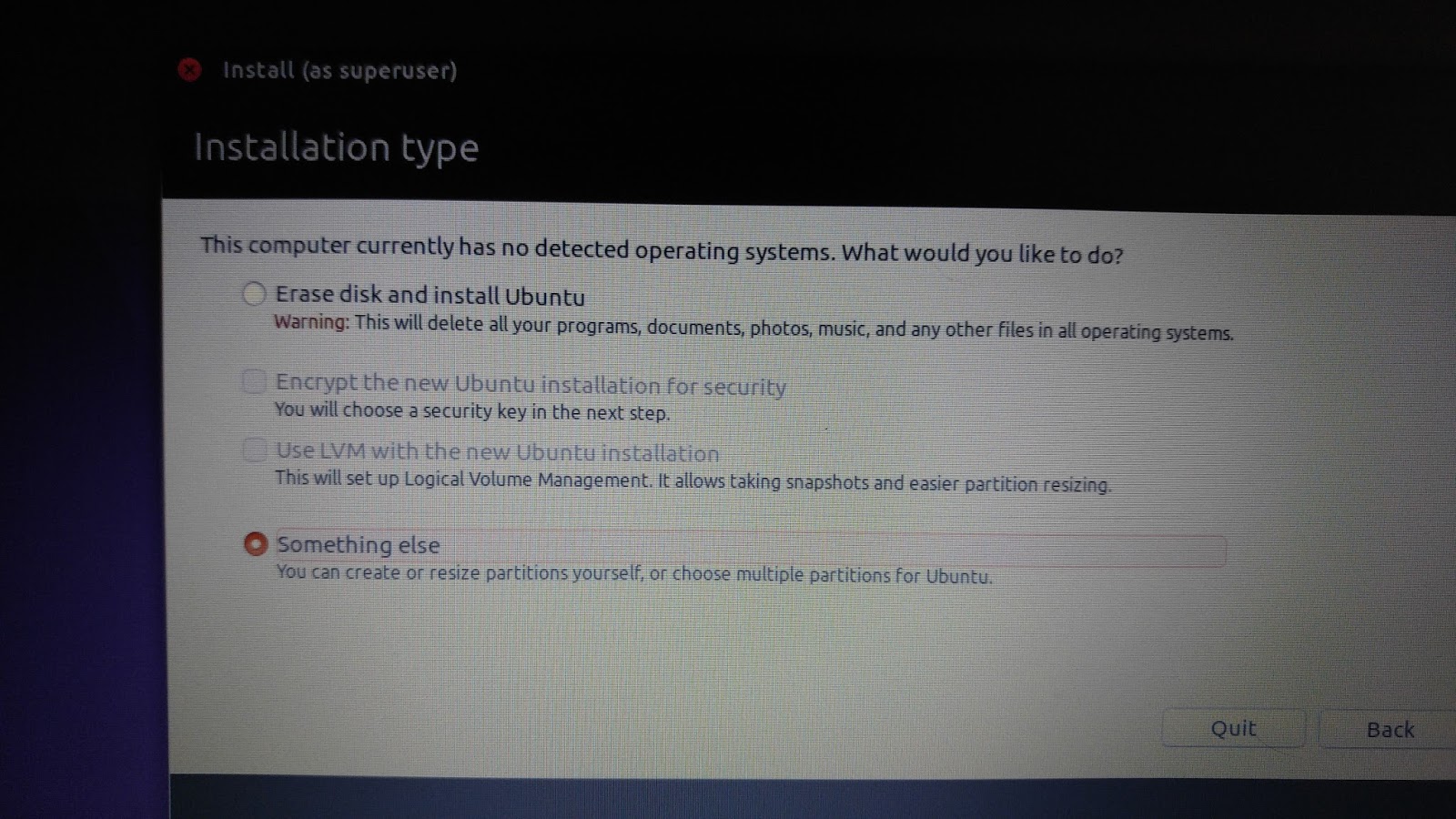
Here's what I did. And pardon the quality of the pics, I used my phone to grab the installer and disk screens.

First, I installed Windows 8.1 in UEFI mode with secure boot, yadda yadda. This is the only way I will get a properly activated installation and be able to upgrade to Windows 10, since that is the version that my BIOS Windows OS activation key is for - another genius "feature". On this installation I didn't give it the whole hard drive - only a section of it. I used 100GB + 500MB it takes for it's stupid partitions, then multiplied by 1024. After the warning that it will create some partitions for itself, you can see the final partitions it created, both on the installer and in Disk Manager once the Windows OS is running.


Second, I changed the BIOS mode to Legacy. Ah, BIOS like BIOS should be. This effectively makes Windows stop booting, since Windows relies on all the new features we just disabled. Your BIOS options will vary but there will be a way to do this (and hopefully, this option never goes away!)


Third, I booted the Ubuntu installer to install on the free space. In legacy Boot mode, Ubuntu sees others partitions but doesn't recognize it's Windows, hence you had to leave the free space from the Windows installation (or shrink it if you already are running Windows) and do the installation manually by selecting "Something Else".


I had to create a swap, /boot, / and something new to me, a Microcode reserved Boot partition. It said it only needed 1MB, but when I gave it 1MB, it balked, so I gave it 10 and it continued. I also left myself some free space in case I ever want to move things out of /. This is a personal choice and you can do whatever you want to maintain later. Here is my order:


I left the MBR boot info in the lone disk in this laptop and proceeded to finish the installation.


Voila - Ubuntu boots perfectly fine, thinking it's the only OS. No messing around with ANYTHING. You can see the output of disks from the Ubuntu OS:


I still wonder what will happen when I upgrade Ubuntu, as I should be at least getting a GRUB screen on boot and I currently don't see it. This screen is what would be showing the old and new version of the Kernel and the recover options, but I guess I will find out soon enough and will update this post when I figure it out. My intuition tells me that maybe I should asked the MBR to boot on that 10MB partition, so I will dig further if I ever care enough.

Fourth, and finally, If I want Windows, I go back into my BIOS settings and select the UEFI bios mode. Windows boots up perfectly. You can see what disk manager sees in this photo:


So if you are tired of playing with all the Windows settings and trying to fix the Ubuntu boot process inside UEFI, why don't you give this method a try? I had enough myself.