Well, UEFI / secure boot and all these new "features" said no to that. Thanks Microsoft (and whoever argues it wasn't Microsoft that put in all these complications can read this)
The dual boot process today can be basically described as a root canal:

Like the meme goes, ain't nobody got time for ALL that.
Here's what I did. And pardon the quality of the pics, I used my phone to grab the installer and disk screens.
First, I installed Windows 8.1 in UEFI mode with secure boot, yadda yadda. This is the only way I will get a properly activated installation and be able to upgrade to Windows 10, since that is the version that my BIOS Windows OS activation key is for - another genius "feature". On this installation I didn't give it the whole hard drive - only a section of it. I used 100GB + 500MB it takes for it's stupid partitions, then multiplied by 1024. After the warning that it will create some partitions for itself, you can see the final partitions it created, both on the installer and in Disk Manager once the Windows OS is running.


Second, I changed the BIOS mode to Legacy. Ah, BIOS like BIOS should be. This effectively makes Windows stop booting, since Windows relies on all the new features we just disabled. Your BIOS options will vary but there will be a way to do this (and hopefully, this option never goes away!)

Third, I booted the Ubuntu installer to install on the free space. In legacy Boot mode, Ubuntu sees others partitions but doesn't recognize it's Windows, hence you had to leave the free space from the Windows installation (or shrink it if you already are running Windows) and do the installation manually by selecting "Something Else".
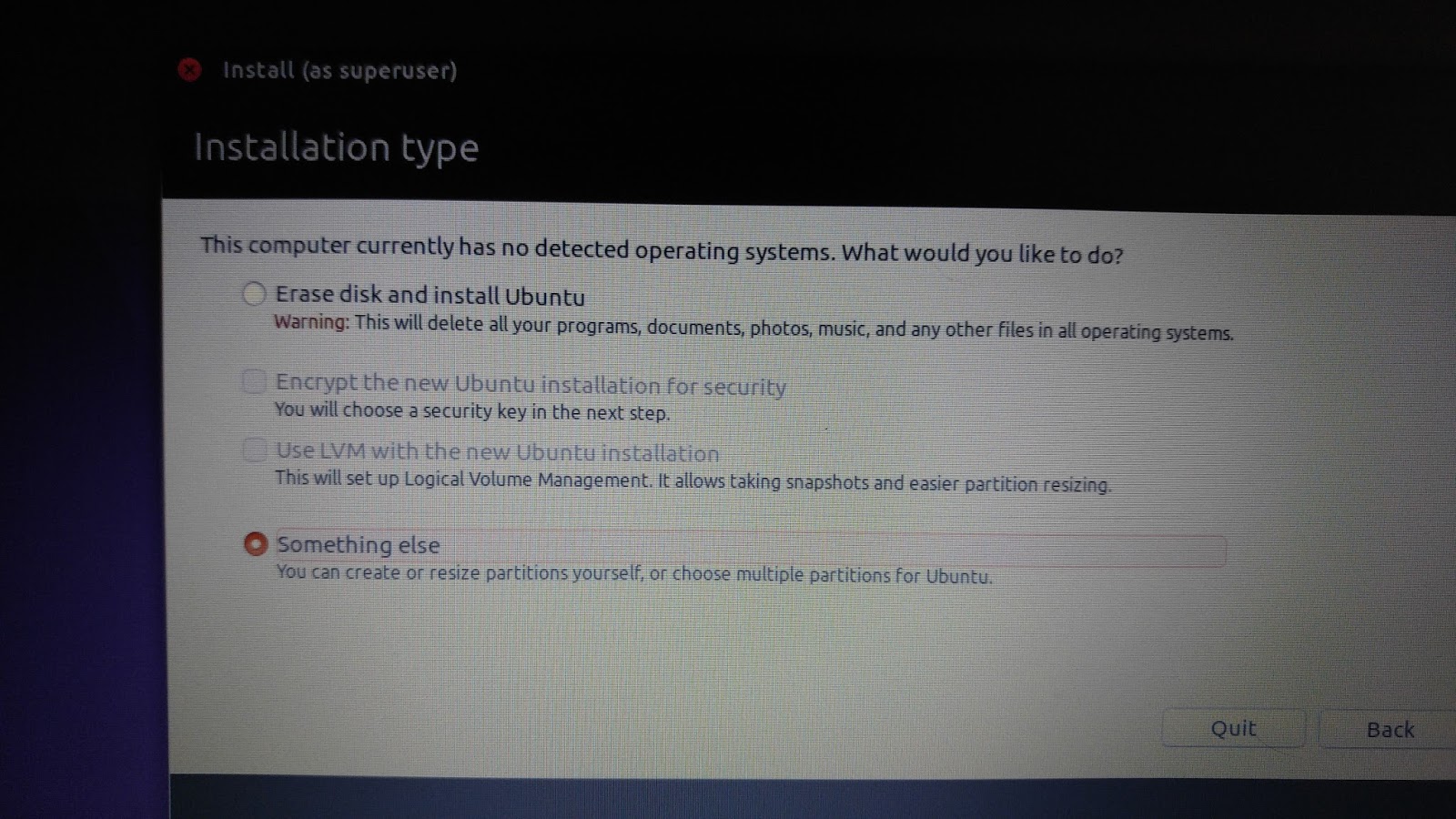
I had to create a swap, /boot, / and something new to me, a Microcode reserved Boot partition. It said it only needed 1MB, but when I gave it 1MB, it balked, so I gave it 10 and it continued. I also left myself some free space in case I ever want to move things out of /. This is a personal choice and you can do whatever you want to maintain later. Here is my order:


I left the MBR boot info in the lone disk in this laptop and proceeded to finish the installation.

Voila - Ubuntu boots perfectly fine, thinking it's the only OS. No messing around with ANYTHING. You can see the output of disks from the Ubuntu OS:

I still wonder what will happen when I upgrade Ubuntu, as I should be at least getting a GRUB screen on boot and I currently don't see it. This screen is what would be showing the old and new version of the Kernel and the recover options, but I guess I will find out soon enough and will update this post when I figure it out. My intuition tells me that maybe I should asked the MBR to boot on that 10MB partition, so I will dig further if I ever care enough.
Fourth, and finally, If I want Windows, I go back into my BIOS settings and select the UEFI bios mode. Windows boots up perfectly. You can see what disk manager sees in this photo:

So if you are tired of playing with all the Windows settings and trying to fix the Ubuntu boot process inside UEFI, why don't you give this method a try? I had enough myself.
